 Ghbdtn
Typed in the wrong layout? Ghbdtn fixes it for you
It runs in the background, watches what you type and retypes the word in the right layout: ghbdtn becomes "привет", and руддщ becomes "hello". Manual mode is a double press of Left Shift.
Windows x64 · Free, MPL-2.0 · Works offline
The word is retyped in the other layout and the layout is switched
Features
Automatic switching
Each word is read twice: as typed and as text in the other layout. It is switched when the other reading is clearly more plausible. Three modes: cautious, balanced, aggressive.
Double Left Shift
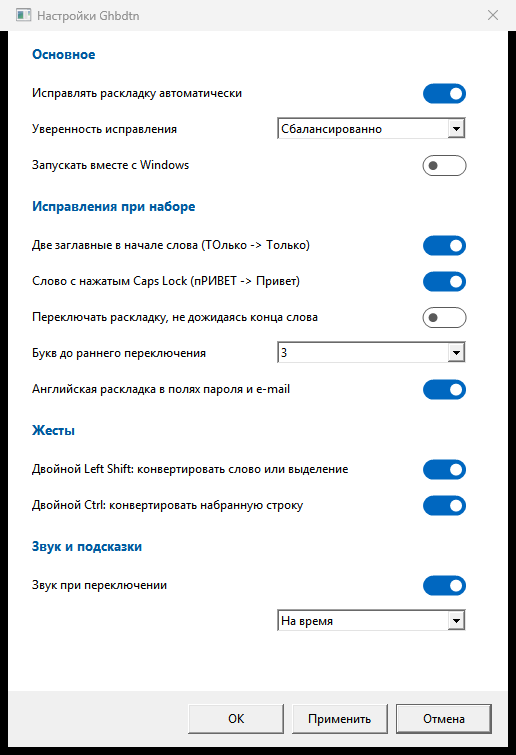
Retypes the word, converts the selection or the word at the caret. Pressing it again restores the previous text. Double Left Ctrl converts the whole typed line.
No waiting for the word end
Optionally, a word is switched after a few letters if its beginning looks like no word of its own language. Double Left Shift before the word ends cancels it.
Learns from your corrections
An undone correction is remembered and the word is left alone. A word you switched by hand is switched automatically next time. Records are kept per application.
Stays out of the way
In password fields it does nothing. Words with digits, addresses, paths, mixed alphabets and abbreviations are left alone. It stays quiet in full-screen apps and password managers.
Per-application rules
An exclusion list with wildcards, separate settings per application, a quick pause from the tray menu, including 30 minutes or an hour.
Hint at the caret
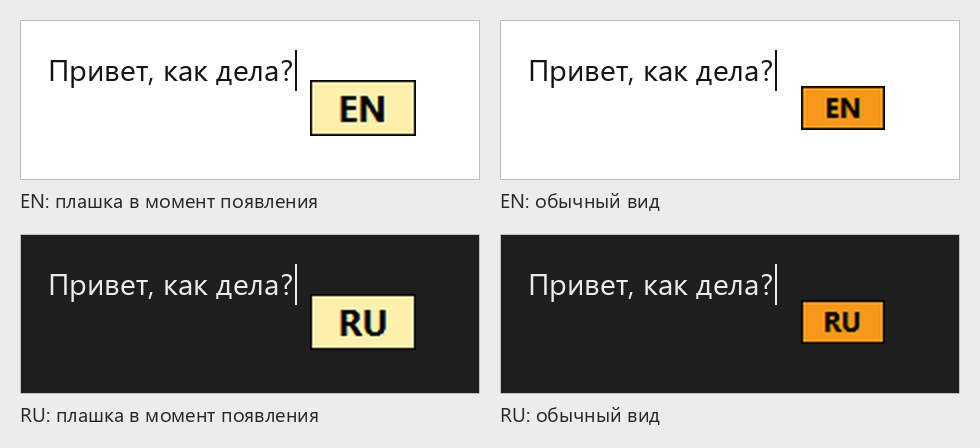
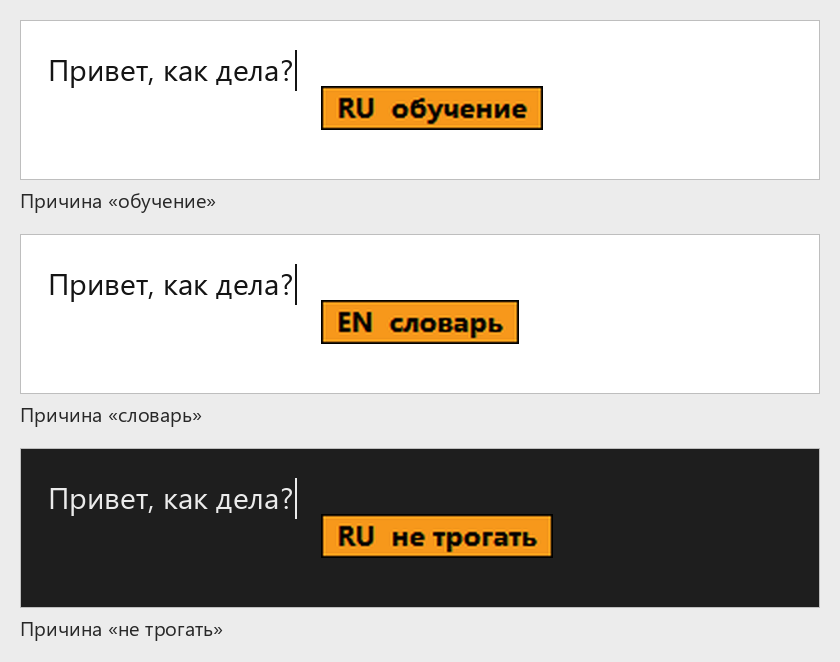
When the layout changes, a small RU or EN tag appears near the caret. If the decision is not obvious, the tag names the reason: learning, dictionary or "leave alone".
Case and Caps Lock
"ТОлько" becomes "Только", "пРИВЕТ" becomes "Привет" and Caps Lock is turned off. Double Right Shift changes the case of the selection, and the tray menu offers transliteration.
Context aware
A short function word before the word being fixed is converted with it: D yfxfkt becomes "В начале". Only the wrong part of a word is fixed.
Offline
Nothing you type is sent anywhere, and the program does not go online on its own. Settings live in config.json next to Ghbdtn.exe.
Screenshots
Getting started
- Download the archive from the Releases page and verify it against the
.sha256file. - Extract it to any folder and run
Ghbdtn.exe. An icon appears in the notification area and shows the current layout. - Type. Wrong layout? Press Left Shift twice. Settings, autostart and per-application rules are in the icon menu.
Like every layout switcher, the program installs global keyboard and mouse hooks, so your antivirus may ask about it. The source code is open, so you can inspect it and build it yourself: build instructions (in Russian).